Power BI Limitations: What Teams Run Into at Scale

Power BI sits at the center of how many teams work with data today. It helps businesses pull numbers from different places, build reports, and visualize performance in one place. For plenty of teams, that works well. For others, cracks start to show as their needs grow.
This article takes a hard look at the real limitations of Power BI in 2026. See where it struggles, why that matters, and when it may be time to look for a different approach.
Core limitations of Power BI
#1 Complexity and steep learning curve
On paper, Power BI looks approachable.
In practice, many teams hit a wall faster than expected.
The tool bundles many layers into one environment. That includes modeling, transformations, expressions, and visuals – each layer comes with its own rules.
For analysts, this is manageable. For non-technical users, it often is not. Even simple tasks like adjusting a calculation or fixing a broken filter can turn into a dependency on specialists. That slows teams down.

The learning curve also shows up in the expression language, DAX. DAX gives you power, but it demands precision. Mistakes are easy to make and hard to debug, and new users can start feeling that friction quickly.


There is also the platform sprawl to deal with. You move between Power BI Desktop, the Power BI Service, and sometimes Power BI Gateway; depending on your data sources and how you plan to refresh or share reports. Each plays a role, yet none of it feels lightweight.
That said: for simple reports or small datasets, Power BI often stays approachable and easy enough to use out-of-the-box. You don’t always need heavy modeling or deep DAX skills.
However, this is where the first real trade-off appears. Power BI offers depth, but that depth comes at the cost of speed, approachability and self-serve confidence for everyday users.
#2 Data volume, performance and large-dataset limits
As your data grows (more rows, more sources, more complexity) Power BI starts showing its age. What works on a small scale often gets shaky when you scale up.
Dataset size limits & memory constraints
- Under the default shared-capacity (Pro) license, a published dataset is limited to 1 GB.
- With Power BI Premium or dedicated capacity, limits expand. You often need to enable “large dataset storage format,” and there’s still a cap tied to memory and capacity settings, though.
- If you try to load a very large dataset into memory (import mode), your model can become unwieldy: import times, memory consumption and refresh times increase steeply.
Performance degradation with heavy data or poor model design
- Reports tend to slow down. Loading Power BI dashboards, applying filters or drills, refreshing data: all can lag or even timeout when data volumes or cardinality (unique values) grow large.
- Working purely in a cached (import) model isn’t always feasible for large data, you may need to switch to modes like “DirectQuery” or “Composite.” But those modes bring trade-offs: querying happens live against the source, so performance depends on the source DB, network latency and query complexity.
- For complex data models (many tables, high-cardinality columns, many relationships), even “well under limits” can feel slow or brittle without careful optimization.
Requires optimization, often non-trivial
- To stay performant, you need more than just loading data. Good practices include aggregating data, filtering out unneeded columns/rows, using the right storage mode, maybe moving heavy transformations out of Power BI, or switching to incremental refresh.
- Without that effort (or with limited resources/skill) your experience can degrade quickly as data scales.
For modest datasets, basic models, or occasional reporting, Power BI holds up well. Its built-in engine (VertiPaq) compresses data efficiently, making many workloads manageable even on medium-sized data sets. But the “reasonable workload barrier” rises quickly once you need more scale, more freshness, more complexity.
#3 Embedding, customization and flexibility
When you try to embed Power BI into a product or offer it to external users, the trade-offs become real. What works for internal reports often needs much more effort when used like a product-embedded analytics engine:
- Power BI offers official embedding options for apps, portals or SaaS products via its “embed for your customers” path.
- To embed securely (not via public share), you need a proper capacity- or license-based setup. It’s not just “export + iframe.”
- Embedded scenarios typically demand a developer (or dev team): authentication (service principals / tokens), workspace management, permissions, possibly custom front-end wrappers rather than just default UI. You also need a dev team for embedded analytics tools, but it’s not that cumbersome.
- A note on AI: Microsoft's Copilot is prominent in Power BI and Microsoft Fabric, but as of the 2025 release it does not extend to the Power BI Embedded (app-owns-data) experience your external users see. So don't assume embedded customers get Copilot — verify Microsoft's current documentation before promising AI features in an embedded scenario.
#4 Customization & branding are possible, but sometimes limited or costly
Because embedded reports often run inside an iframe or using the standard Power BI renderer, customizing look, feel, layout or UX to match your product can be hard. Full white-labeling requires effort.

Some advanced visuals or interactive behaviors may not behave identically when embedded as when used directly — depending on environment, rendering mode or data setup.

As a result, you may end up with a semi-custom solution: you get interactivity and data analysis options, but still retain complexity and partial dependency on Power BI infrastructure.
#5 Permissions, Multi-tenant Access & External Sharing: a hidden complexity in Power BI
When you move beyond internal use of Power BI and try to deliver analytics to a broader or external audience, permissions and access management quickly become a major challenge.
Power BI provides mechanisms, but they come with trade-offs:
- Power BI supports secure sharing and embedding, including approaches for multi-tenant apps using “Embed for your customer/organization” scenarios. You can build a scalable system that serves many clients, each mapped to a separate workspace/tenant.
- It also offers row-level security (RLS) to restrict which parts of a dataset each user can see. That enables filtering reports dynamically per user or region, which in theory supports role-based dashboards.
- For internal teams (or small-scale sharing) with users all under the same Azure AD tenant, permissions are manageable. Sharing dashboards and reports with colleagues is straightforward under the correct license.
In practice: complexity, cost and maintenance grow fast when you scale.
- For external users (clients, customers, partners), you usually need special embedding + licensing setup. Without a dedicated capacity, every user typically needs a license (e.g. Pro or Premium). That makes scaling expensive and administratively heavy. Our Power BI pricing breakdown explains how per-user and capacity licensing change at larger scale.
- Implementing RLS and per-tenant isolation properly demands additional configuration: defining roles/filters in the data model, embedding with secure authentication (service principal / tokens), and ensuring that each workspace is correctly isolated.
- When you embed across many tenants, you often need to automate workspace creation, data-source configuration, refresh scheduling, permissions management. That introduces maintenance overhead similar to building a custom analytics product rather than just using a BI tool.
- If licensing, permissions or security are mis-configured (e.g. guest access, license gaps, wrong security roles), you risk either over-sharing sensitive data or denying access incorrectly: both problematic for user experience and compliance.
What does it change for teams delivering customer-facing or multi-tenant analytics?
- If your needs are internal (e.g. business users, limited team size, same domain) Power BI’s sharing & permissions model works.
- But if you expect many external users, clients, different organizations, or want to show different data per user/region/role, plan carefully. RLS + embedding + licensing must be handled properly.
- For SaaS-type use cases (delivering analytics as part of your product), Power BI can support it, but only with non-trivial engineering, licensing overhead and maintenance burden. It starts to look more like building a custom analytics solution than using a plug-and-play BI tool.
#6 Data quality, source diversity & integration
Power BI includes tools for loading data from many kinds of sources: spreadsheets, databases, cloud services, CSVs, etc. That gives you flexibility when bringing in data from different systems.

For data cleaning and shaping, you get built-in helpers like query tools and transformation logic.
But... that’s only half the story.
Where problems often creep in
- Data quality issues are real. If you feed inconsistent, incomplete, or poorly cleaned “raw data” into Power BI, the outcome (dashboards, generating reports, KPIs) can be misleading. “Garbage in, garbage out.”
- Merging or consolidating data from multiple sources (especially external systems, legacy databases, or heterogeneous formats) often requires careful work. Without proper cleansing and standardization, you can end with duplicated records, incorrect joins, mismatched formats... and faulty insights.
- For large or complex datasets, or if data models aren’t designed carefully, even transformation/cleanup tasks (filtering, type conversion, normalization) can affect performance or lead to long load/refresh times.
So, if you treat Power BI as a “plug-and-play” visualization tool, expecting it to magically clean, unify, and structure any kind of data... you're likely to be disappointed. For trustworthy dashboards and reports, you need solid data quality and good data-source practices before the data reaches Power BI.
Without that:
- You risk misleading charts or KPIs (wrong totals, inconsistent data, mismatches).
- You lose trust in analytics outputs, which defeats the point of “data-driven decisions.”
- As data grows or business logic evolves, maintaining correctness becomes a growing burden.
#7 Cost & licensing: why Power BI’s price tag becomes a REAL limitation
Anyone evaluating Power BI should know: licenses may start cheap, but as usage grows, total cost can rise fast.
- As of 2026, the “Pro” license costs US $14 per user/month (up from $10) for teams needing collaboration, sharing or cloud-based reports.
- The “Premium per user” license (for advanced features, bigger datasets and more frequent refreshes) costs US $24 per user/month.
- The free edition (desktop-only) remains free BUT it cannot be used for sharing or scalable collaboration.
That's not the end though – there are many hidden and scaling-driven costs as well:
- For small teams or single analysts, Pro may suffice. But once you add more users (especially those who need report viewing or collaboration) those per-user fees add up fast.
- For serious usage (big data models, many consumers, frequent refreshes, embedding, external viewers) many organizations end up needing Premium (per user) or even capacity-based licensing (Premium/Embedded capacity), which significantly raises costs.
- Capacity-based licensing means paying for compute/storage (not user count), which is efficient only if you justify the cost (many viewers, heavy data loads, embedding, etc.). Otherwise, you may pay for performance you don’t fully use.
- For embedding analytics (e.g. in SaaS platforms) or giving access to many external users, license and infrastructure management becomes a non-trivial overhead — shifting focus from insights to cost control and maintenance.
For modest internal reporting and occasional dashboards, Power BI remains cost-effective and accessible: you pay only for the users who actively use the system. But when only the use case expands (large datasets, many users, external viewers, embedding), Power BI’s pricing model can turn into a constraint. The gap between “small-team use” and “enterprise/embedded use” is wide.
This scaling cost burden is one of the reasons many companies start evaluating alternative tools: especially if they need embedded analytics or external-facing dashboards without steep or unpredictable licensing fees.
#8 Data sources, connectivity & offline limitations
Not at all times Power BI can keep up, and not all use cases are smooth.
Power BI connects to a wide variety of data sources (spreadsheets, databases, cloud services, CSVs) via Power Query and built-in connectors. However, not every connector supports all features (e.g. real-time queries, full transformation support, or live-query modes). For some sources, you might be forced into sub-optimal modes or compromise on performance.

As external systems, legacy databases or heterogeneous sources multiply, integrating and harmonizing data becomes harder. Combining data from many systems often requires extra transformation work outside Power BI, or careful design to avoid inconsistent joins, mismatched formats or data-quality problems.
When a system grows to integrate many external systems (ERP, CRM, data warehouses, third-party tools), maintaining stable connections, refresh schedules, and data integrity gets harder. Power BI doesn’t guarantee seamless scaling across all connectors.
For real-time data or frequently changing data sources, relying on import mode may not suffice; switching to live-query or hybrid models helps, but those modes come with trade-offs: performance, query latency, and reliance on source-system stability.
What does this mean if you’re building serious data infrastructure?
- If you just need occasional reporting or simple dashboards with small data sets –> Power BI’s data-source support and offline Desktop mode may be enough.
- If you operate in a complex environment –> multiple external systems, large or live data streams, many users or clients, frequent updates, you’ll likely face integration, performance, or maintenance trade-offs.
In those scenarios, you need to plan for data governance, preprocessing, stable infrastructure, or consider whether a BI tool optimized for embedded, scalable, multi-source workloads fits better.
When it makes sense to look beyond Power BI, and consider something else
You might want to consider alternatives to Power BI when:
- You need embedded analytics –> dashboards inside your own product, app or SaaS platform, for external users (not just internal staff).
- You care about fast time-to-market. You want to ship analytics capabilities quickly without months of development or heavy setup overhead.
- You want white-labeling / seamless UX integration. Dashboards should feel native to your product, matching branding and styling (not Power BI’s “BI tool” UI).
- Your user base scales fast (many end users, multiple tenants, external clients) and you need predictable licensing, maintenance, and performance as you grow.
- Your team lacks deep BI-engineering resources, or you want to avoid complex data-modelling, DAX, and ongoing optimization/maintenance.
When your goals lean in these directions, Power BI’s strengths (deep modeling, flexibility, integration with MS ecosystem) turn into burdens: complexity, cost, maintenance, licensing friction, or UX friction.
Why Luzmo can be a strong alternative
Luzmo is built around embedded analytics and SaaS-native usage. That shapes its strengths differently than traditional BI tools.
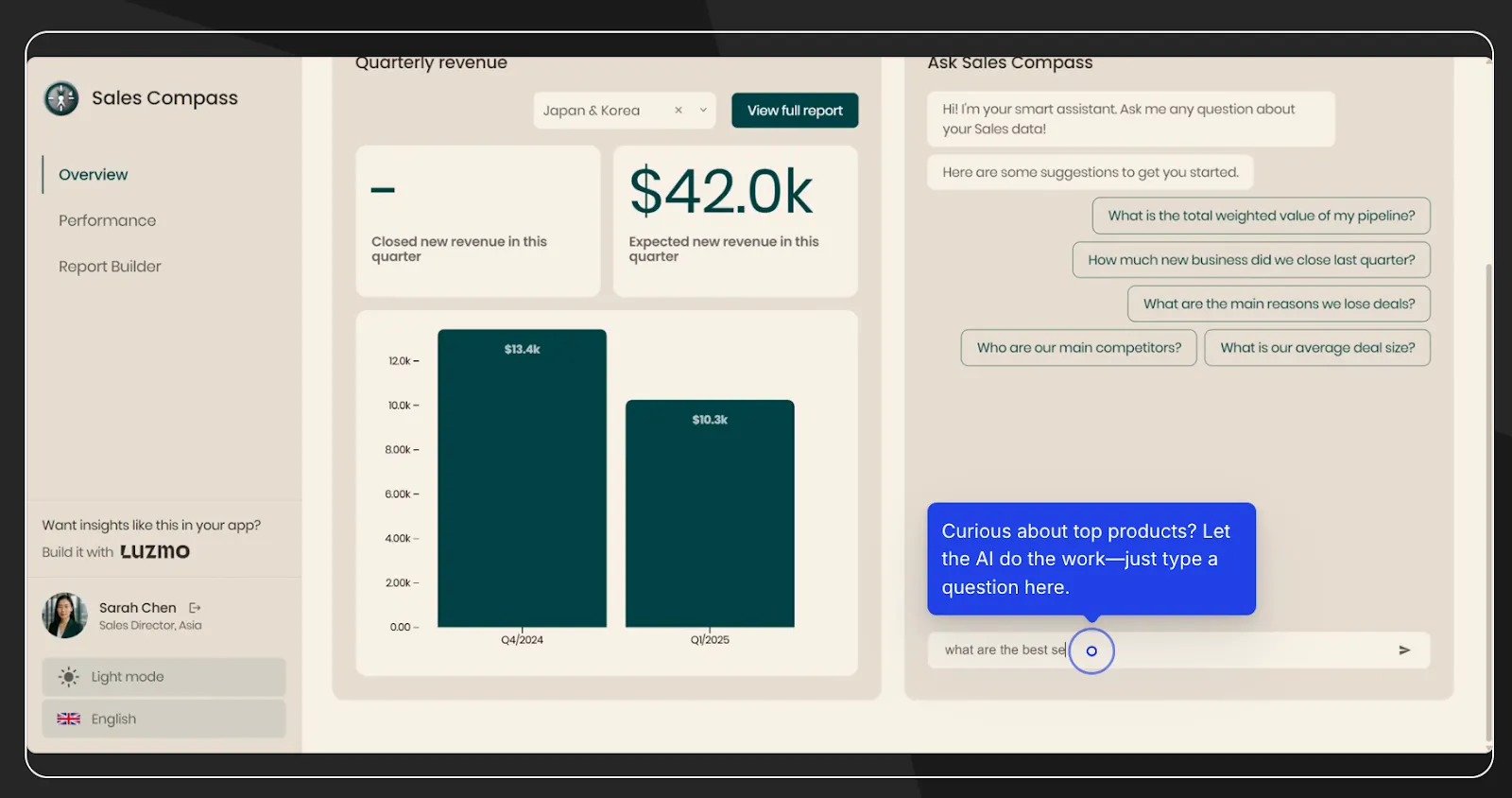
Here’s where Luzmo stands out:
- Purpose-built for embedded analytics and SaaS products. Unlike a general BI platform, Luzmo is designed so you can “add analytics to your product,” not treat it like a separate reporting tool.
- Fast deployment, minimal overhead. Teams can build dashboards via an intuitive, drag-and-drop interface (via Luzmo Studio) or embed via SDK/API (Luzmo Flex SDK), often in hours instead of weeks.
- Good fit for external-facing dashboards & self-service analytics for users. Users (customers, clients) get interactive analytics inside your product; no need to handle separate analytics licenses or force users to learn heavy BI tools.
- Lower maintenance burden for dev teams. Since hosting, scaling, and analytics infrastructure is cloud-based and managed, your team doesn’t need to build/maintain complex data-model pipelines or worry about capacity-based licensing overhead typical for embedding with Power BI.
- Flexible embedding options: from no-code to full-code. Luzmo caters both to product teams that want quick dashboards and to engineering-led teams that need fine-grained control via SDKs and APIs.
Luzmo trades off some of the heavy-duty BI modeling depth for speed, simplicity, embed-first design, and lower friction, which often better matches the needs of SaaS products, external user analytics, and fast-growing software businesses.
[CTA]
What today’s SaaS and product teams should ask themselves
Before choosing between Microsoft Power BI and a tool like Luzmo, try answering:
- Is analytics for internal teams only, or do you want to ship analytics inside your product to external customers?
- Do you expect quickly growing numbers of end users, or many tenants/customers – in which case licensing and infrastructure scalability matter?
- Can your team afford the cost, complexity, and maintenance overhead of a full BI stack; or do you want something easy to embed and maintain long-term?
- Is seamless UX/brand alignment important, or can you accept a tool-like look and feel?
- Do you value speed of delivery and low friction over deep data-modeling and advanced BI features?
If many of these point toward “embed, scale, speed, simplicity”, that’s when alternatives like Luzmo become worth serious consideration.
Is it time to consider an alternative to Power BI?
Microsoft Power BI remains a powerful business intelligence tool. For companies that need a familiar data-analysis tool, solid data visualization tool, or light dashboards for internal use, it often delivers.
It’s especially convenient if you work inside the Microsoft ecosystem. You can import data from SQL Server or use Microsoft Excel integration, combine multiple data models, transform complex data sets, build interactive reports and share dashboards with a few clicks. There’s even a free version (via Power BI Desktop / Free license) for individuals or small teams just getting started.
But as your needs evolve: larger datasets, many users, external customers, embedding into a product, or stricter UX expectations, some fundamental trade-offs become harder to ignore:
- Using Power BI Pro (or Premium / capacity-based licensing) becomes necessary for sharing, collaboration, and delivering reports to users beyond the author.
- The user interface – while full-featured – can feel bulky, especially when dashboards get complex. Custom visuals, deep modelling, and data-transformation tasks often require building skills in expressions (DAX) or careful data-transformation logic. That adds overhead and increases maintenance burden.
- Offline access or handling poor internet connectivity is limited: building in Power BI Desktop is possible, but sharing or collaborating requires the online Service, which makes distributed or remote teams more dependent on stable connections.
- If you plan to embed analytics into a SaaS product or deliver dashboards to external users or customers, you may quickly run into licensing, share/permissions and configuration complexity, or need to commit to Premium capacity or embedding infrastructure.
If your goals are to embed analytics into a product, deliver polished dashboards to external users, maintain lower maintenance overhead, and avoid scaling complexity, that’s where a tool built with those use-cases in mind can make a difference.
That’s where an efficient data analysis solution like Luzmo becomes worth considering. As a solution designed around embedded analytics and SaaS-native usage, it can reduce friction, simplify UX, and help scale analytics without jumping licensing tiers or building heavy data-infrastructure from scratch.
Luzmo starts at €1,995 per month, billed annually, combining a platform fee with adoption-based usage measured through monthly active users, AI conversations or both.
If your roadmap points toward embedded analytics, external users, and fast-moving growth, that’s when a purpose-built alternative like Luzmo deserves serious attention.
Written by

Ship the future of your data
Let us show you what Luzmo can do for your product.

Book your session with our analytics expert.